
RomeoSEO11 min read
Google's Rich Results Test: Fix What It Finds
How to run Google's Rich Results Test: URL vs code mode, errors vs warnings, fixing schema errors, and monitoring rich results in Search Console.
Summary of the Article
Google's Rich Results Test tells you whether a page's structured data is eligible for rich results, and what's blocking it if it isn't. Use URL mode for anything that's already live, code mode for drafts, then fix the errors it reports and re-test.
- URL mode: tests the live page as Google-InspectionTool sees it, rendered HTML and all.
- Code mode: fast for drafts and edits, but it only sees what you paste, so markup your site's scripts inject at runtime is missing.
- Errors: these block eligibility for that rich result type. Fix every one.
- Warnings: missing recommended properties. The item is still eligible, so treat these as improvements, not fires.
- Valid result: eligibility only. Google decides what actually shows in search.
What the Rich Results Test actually checks
The Rich Results Test is Google's official tool for checking whether a page's structured data qualifies for rich results: the extras you sometimes see in search listings, like star ratings, recipe steps, event dates or breadcrumb trails.
Two things happen under the hood, and knowing them explains most confusing results:
- The tool fetches the page and renders it, so it sees the final HTML your visitors see, not just the raw source.
- It reads the structured data on that rendered page. It supports all three formats Google accepts: JSON-LD (a script block, the most common), Microdata (attributes woven into HTML tags) and RDFa (similar, attribute-based).
The report shows which rich result types it found, the issues in each, and a code explorer that jumps to the exact spot in the rendered source when you click an issue.
Step 1: Pick the right mode (URL or code)
The landing page offers two inputs. Choose by where your page lives right now.
Use URL mode for anything live. Paste the full URL. The tool crawls the page as Google-InspectionTool, Google's own crawler identity, and tests the rendered result.
Use code mode for drafts. Paste your JSON-LD or HTML and click Run test. You can edit and re-run as often as you like, which makes this the fastest loop while writing markup.
Code mode has one big blind spot: your pasted code is tested on its own, without the rest of your live page. If a plugin or script on the live page injects your schema at runtime, code mode can't see it. Test the live URL for anything generated by JavaScript.
Pick the user agent deliberately. Below the input box you can choose smartphone (the default) or desktop. Google uses mobile-first indexing, so the smartphone default is right for almost everyone. Switch to desktop only when you suspect the desktop rendering behaves differently.
Staging and localhost pages need a public door. The tool can't reach pages behind a firewall, password protection, or your own machine. Google's own guidance: either expose a tunnel (a public URL that forwards to your local or staging server) or test the code snippet directly. Every page resource must also be reachable by an anonymous visitor; anything login-gated silently fails.
Step 2: Read the top-line status
When the test finishes, the status line sorts into a handful of values. The Google help page documents the full set:
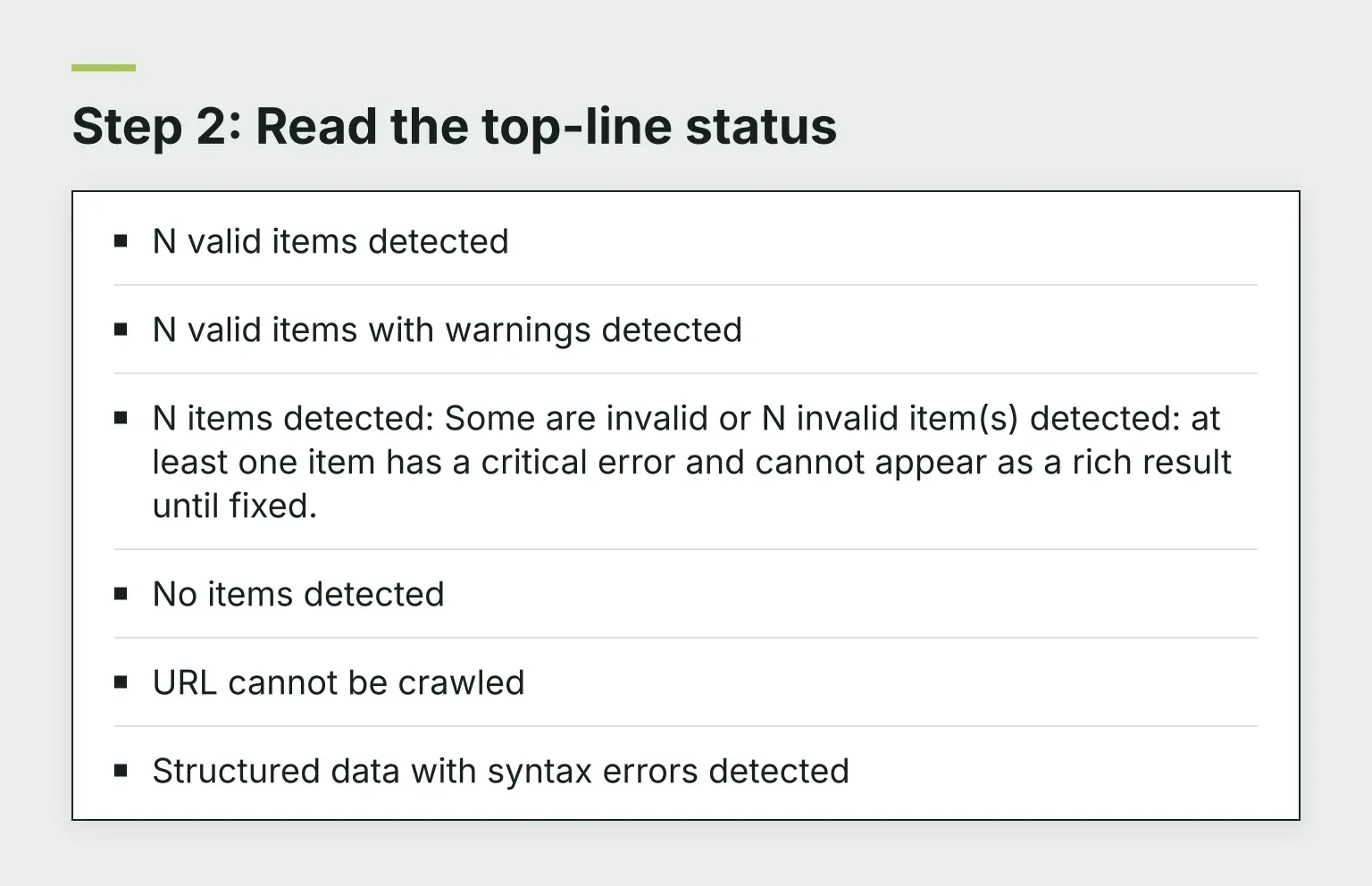
- N valid items detected: the markup meets Google's requirements for the types found.
- N valid items with warnings detected (and the split versions, all/some have warnings): items qualify, but recommended properties are missing.
- N items detected: Some are invalid or N invalid item(s) detected: at least one item has a critical error and cannot appear as a rich result until fixed.
- No items detected: the tool found no supported rich result type. Either there's no markup, the markup is for a type the tool doesn't support, the script that injects it failed during rendering, or the markup only appears for logged-in users.
- URL cannot be crawled: the tool couldn't fetch the page at all. See the access errors below.
- Structured data with syntax errors detected: the JSON-LD is broken badly enough that the parser gave up before identifying a type.
Step 3: Tell errors from warnings (and from silence)
Open each detected item and you'll see two kinds of issues, and they're not equal:
- Errors are critical. An item with even one error is invalid and can't show as a rich result. Typical causes: a missing required property, an invalid value, the wrong item type. Fix all of them.
- Warnings are non-critical. Usually a recommended property is missing, like an image or aggregate rating. The item stays eligible. Add the property only if the information is genuinely true and visible on the page; Google's structured data guidelines prohibit marking up content readers can't see.
Here's the trap most guides skip: some missing properties produce no warning at all. Article markup without datePublished or dateModified often comes back clean, even though the missing dates weaken how Google can use the page. A green result means "no detected errors for eligibility," not "nothing worth improving." Treat the test as a floor, not a ceiling.
Step 4: Fix crawl failures first
If the status is "URL cannot be crawled," nothing about your schema matters yet. The tool visits as Google-InspectionTool, not with your credentials, so robots.txt rules apply. The common access errors, straight from Google's documentation:
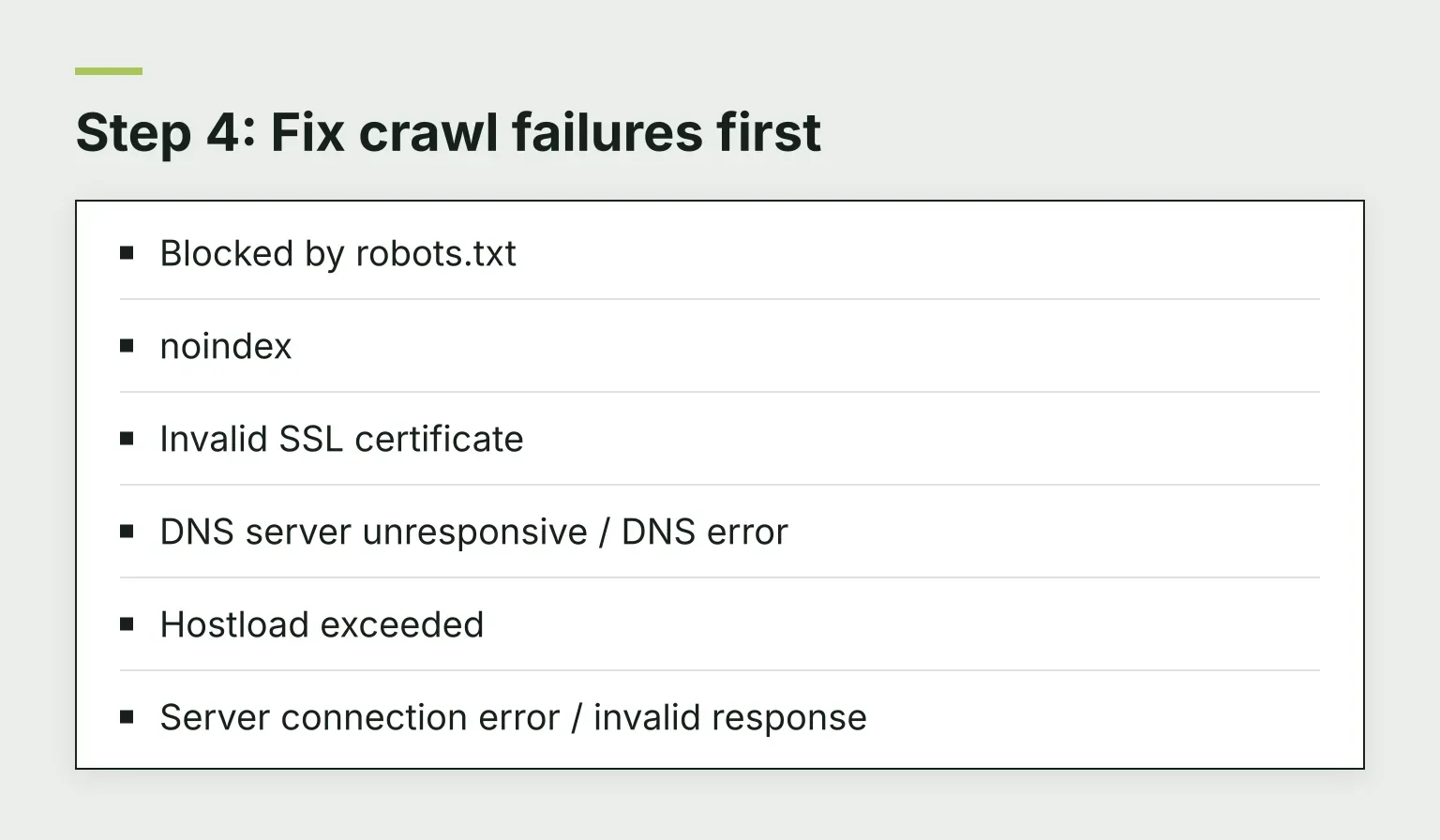
- Blocked by robots.txt: a rule stops Google-InspectionTool. Check whether that block is intentional.
- noindex: a page Google is told not to index can't be tested with this tool.
- Invalid SSL certificate: Google won't test an HTTPS URL whose certificate is invalid.
- DNS server unresponsive / DNS error: often transient. Wait a few minutes and re-run.
- Hostload exceeded: your site is at capacity for Google's estimated traffic load. Test again later.
- Server connection error / invalid response: the server refused or returned a malformed response.
If robots.txt blocks a resource the page needs, you'll get a page-loading warning instead. A blocked image or CSS file can change how Google renders and understands the page, so unblock resources that matter to rendering.
One quirk to expect: with unloadable resources or rendering hiccups, two runs of the same URL can differ slightly, because the set of resources loaded varies per run. If results change with no change from you, look for a "page loading issues" warning in the report.
Step 5: Fix syntax errors in items of unknown type
When a syntax error stops the parser before it can even tell what type you meant, you get a section called "Syntax errors in items of unknown type." The usual suspects:
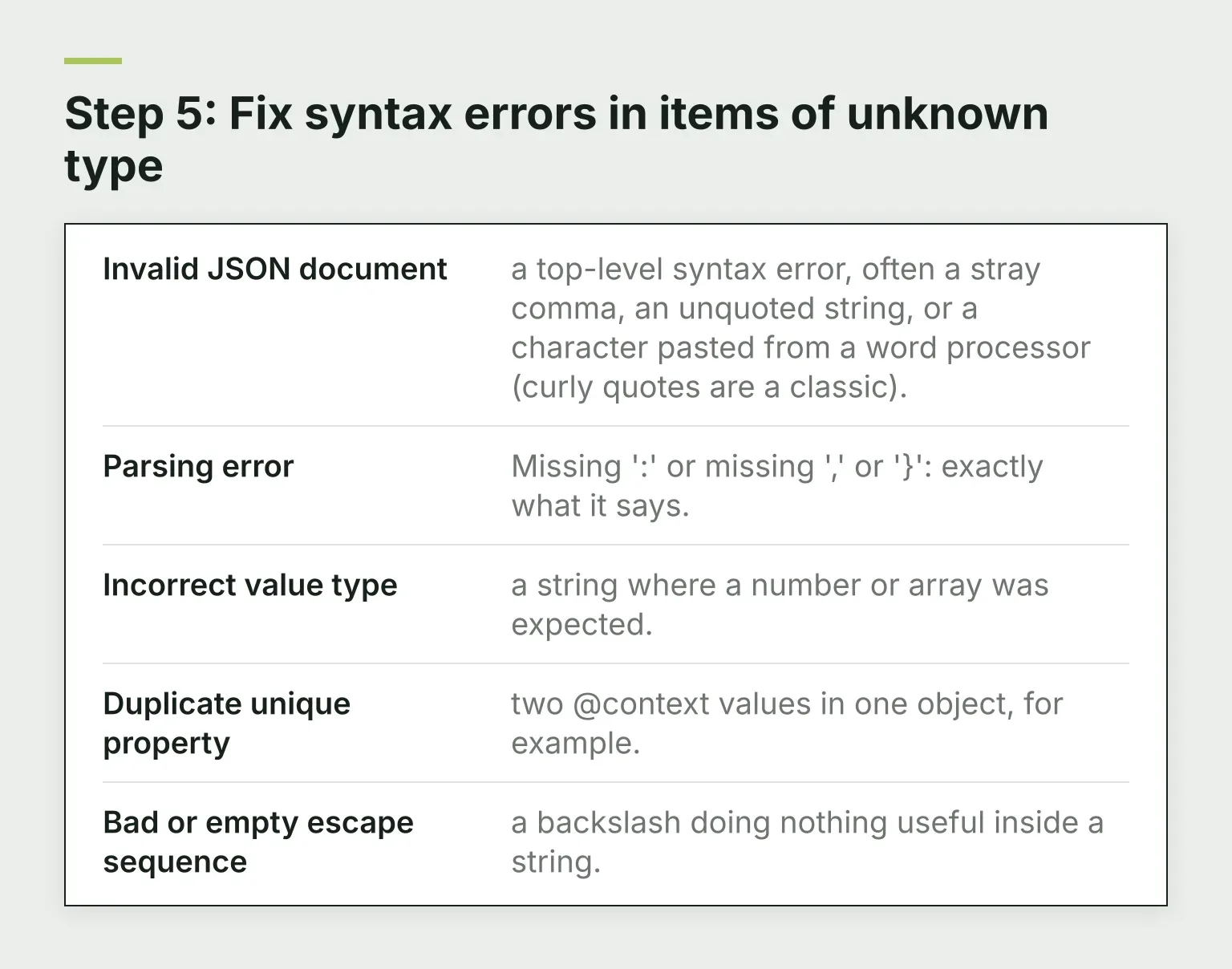
- Invalid JSON document: a top-level syntax error, often a stray comma, an unquoted string, or a character pasted from a word processor (curly quotes are a classic).
- Parsing error: Missing ':' or missing ',' or '}': exactly what it says.
- Incorrect value type: a string where a number or array was expected.
- Duplicate unique property: two
@contextvalues in one object, for example. - Bad or empty escape sequence: a backslash doing nothing useful inside a string.
A JSON formatter makes these obvious in seconds. Fix the first reported error and re-run: one mistake often produces several messages, and clearing a parse error can reveal real errors that were hidden behind it.
One subtlety worth knowing: the test tool ignores comments inside JSON-LD blocks, but that tolerance isn't part of the JSON-LD standard, so the same commented code can fail elsewhere. Google's advice is to remove all comments before publishing.
Step 6: Fix the common per-feature errors
Once the JSON parses, the errors become type-specific. The recurring patterns:
- Missing required properties. The most common error by far. Each rich result type has required fields; Google's structured data feature documentation lists them per type. A Product without price or availability, a Recipe without image or ingredients, an Event without a start date.
- Invalid values. The field exists but the format is wrong: a date string Google can't parse, an image URL that 404s, a rating above the allowed maximum.
- Wrong item type. Marking an article up as a Product, or using a type Google doesn't support for that feature. The item may parse fine and still not qualify.
- Duplicate or conflicting markup. Two plugins each output their own schema for the same page, so Google sees contradictory items. Keep one source of truth and remove the other.
Fix one error, re-run the test, repeat. That loop beats a big-bang rewrite, because you can see exactly which change moved the result.
Step 7: Validate beyond Google's test
Google's tool checks eligibility for its rich result types. Before deploying, it's worth a second pass that checks the JSON-LD itself against the required properties, especially when a CMS or plugin is writing the markup for you.
Our free schema markup validator validates JSON-LD on any URL or pasted snippet, which is handy when you want a second opinion or need to check markup types Google's tool doesn't cover. And if the test found nothing because your markup is missing or half-built, our free schema markup generator produces valid JSON-LD for common page types to start from.
Step 8: Monitor at scale in Search Console
The Rich Results Test is one page at a time. Search Console's rich result reports under Enhancements show the same issues across your whole site, one report per rich result type, once Google finds valid markup of that type.
Three things to know when reading those reports:
- They count items, not pages. A page with three valid Product items counts as three. Don't compare the number to your page count.
- They show samples. The report lists a sample of detected items, not an inventory of every page. For a specific URL, use URL Inspection instead.
- They reflect the last crawl. After you deploy a fix, the report still shows yesterday's problem until Google re-crawls. Use the "Validate fix" option to nudge that along, or run URL Inspection live tests on a few key URLs.
The full workflow loop
Put together, the working routine looks like this:
- Test the live URL (or the draft snippet) with the Rich Results Test.
- Fix errors first, warnings second, using the code explorer to find each issue.
- Redeploy and re-run the test on the live URL.
- Watch Search Console's enhancement reports for site-wide confirmation, and use Validate fix where available.
- Re-run the test after every theme, plugin or template change. That's when markup breaks with nobody noticing.
Then go one layer wider. Once eligibility is sorted, the free on-page SEO checker grades a page for a target keyword, covering indexing and on-page signals beyond structured data. And if you're working through a broader ranking recovery, this test slots naturally into an SEO content audit; monitoring what happens after the fix pairs well with our guide to tracking keyword rankings in Search Console.
Common questions
The test says my page is valid. Why don't I see a rich result? Valid means eligible, not guaranteed. Google decides when and whether to show rich results, based on the query, the device and its own quality signals. A clean test is a prerequisite, not a promise.
Can I test password-protected or AMP pages? Not directly. The tool needs everything reachable by an anonymous visitor, so either expose a tunnel for staging or test the code snippet. AMP pages work through URL mode only if they're publicly accessible; some rich result types also have AMP-specific requirements, so check the feature's documentation.
How long until my fix shows up? The test updates the moment you redeploy. Search Console's reports wait for Google's next crawl, which can take days to weeks depending on the page. Validate fix speeds up re-checking of reported items.
The test is clean but traffic didn't change. What now? Rich results affect how a listing looks, not whether the page ranks. Look at impressions and clicks in Search Console for the affected queries before assuming the schema was the lever.
The next step
Run the test on your five most valuable pages today. Anything with an error goes on the fix list; anything with only warnings gets the recommended properties added when the data is real. That single afternoon usually clears more eligibility blockers than a month of guessing.
If you want to move from checking pages to fixing them, RomeoSEO finds the pages losing ground from your Search Console data and a crawl of your site, including missing or broken structured data, and writes the fixes. Start your free trial and see what it surfaces on your site.