
RomeoSEO12 min read
Webflow SEO: Settings That Matter and a Workflow
Which Webflow SEO settings to check and which plan gates them, plus the CMS template mistakes that break rankings and a workflow for content fixes.
Summary of the Article
Webflow sites can rank well on Google. Most Webflow-specific SEO problems come from a handful of settings: the staging domain, the sitemap, robots.txt, redirects, and metadata on CMS templates.
- Site settings: set your default domain, keep the webflow.io staging copy out of Google, and turn on the auto-generated sitemap.
- Page settings: check titles, meta descriptions, Open Graph, canonical tags, and schema on every static page.
- CMS templates: bind title, description, OG image, and alt text to Collection fields, or one mistake repeats on every item.
- Indexing: use noindex or the sitemap toggle to hide pages, never robots.txt alone.
- Redirects: add 301s in Site settings > Publishing, in bulk from a CSV if needed.
- Plan gates: sitemap, robots.txt, schema, and redirects need a paid plan or paid Workspace.
After the settings are right, SEO comes down to content, internal links, and keyword choices. Those you handle with a workflow, and the last section shows one that finds the opportunities in your own data and delivers the finished work as Webflow CMS drafts.
What Webflow Can and Cannot Do for SEO
Webflow is a solid platform for SEO. It produces clean HTML, serves pages fast, and gives you direct control over the tags that matter: titles, meta descriptions, canonical tags, Open Graph, and structured data. There is no plugin layer or theme bloat between you and the page.
What Webflow does not do is the SEO itself. It will not pick your keywords, find internal linking opportunities, decide which pages to improve first, or write the content. That part is your content workflow, and this guide covers it after the settings.
Most Webflow-specific ranking problems are also not algorithm problems. They are configuration problems: a staging subdomain indexed by mistake, a CMS template with a hardcoded title replicated across 200 blog posts, or a page hidden with robots.txt in a way that backfires. Fix the configuration, and the platform mostly gets out of your way.
Site-Level SEO Settings to Check First
Work through these once, in Site settings > SEO:
1. Default domain. Pick the version of your domain you want to use (with or without www) and publish. Webflow then 301s the other version to it. Mixing the two splits signals across duplicate URLs.
2. Staging domain indexing. Your webflow.io subdomain should not be indexed. Site settings > SEO has a setting to disable Webflow subdomain indexing; make sure it is on, then verify it: open your site at its webflow.io address and check the page source for a noindex robots directive. If a staging copy of your site ends up in Google's index alongside your real domain, that is a duplicate-content problem you created for free.
3. Sitemap. Turn on auto-generate sitemap in Site settings > SEO > Sitemap and publish. Webflow regenerates sitemap.xml every time you publish, and each URL gets a lastmod timestamp. Alternatively, you can paste a fully custom sitemap, which is useful when you use a reverse proxy to connect multiple Webflow sites to one domain. Before you add a Sitemap line to robots.txt by hand, open your live robots.txt and check it is not already there, so the file does not list it twice.
4. Global canonical. Set a global canonical URL in Site settings > SEO so every page points to its preferred version. This is a safeguard, not a fix: with the default domain set correctly, self-referencing canonicals stay clean.
Webflow documents all of this in its own site-level SEO guide, which is worth a skim alongside this one.
Page-Level SEO Settings
Open the Pages panel, hover a static page, and click the settings icon. For every page that matters, check:
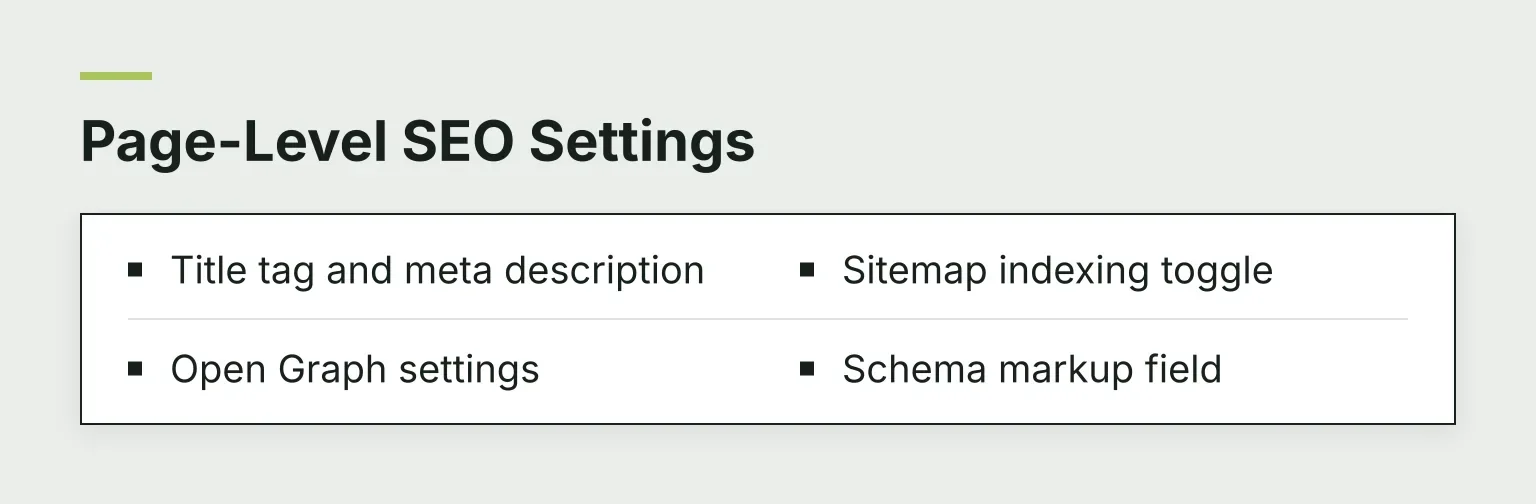
- Title tag and meta description. Unique for every page, no defaults left over. Write titles for the search result, not for the designer canvas.
- Open Graph settings. Set og:title and an og:image at least 1200 pixels wide, or your link previews on LinkedIn, Slack, and X look broken.
- Sitemap indexing toggle. A per-page switch that controls whether the URL appears in the generated sitemap. Important detail: the toggle changes the sitemap, not the page itself. If you want a page kept out of Google's index, use it together with a noindex, not instead of one.
- Schema markup field. You can paste JSON-LD here, generate it with Webflow AI, or bind CMS fields on Collection templates (more on that below). Adding schema in both the schema field and custom code creates duplicate structured data, so pick one place.
The CSS Agency's Webflow SEO settings walkthrough covers each of these fields with screenshots if you want a visual reference.
CMS Collection Templates: Where Sites Break at Scale
Static pages are easy. CMS Collections are where Webflow SEO goes wrong, because one template mistake is replicated across every single item. If your blog has 300 posts and every one of them has the same title tag, the template is the culprit.
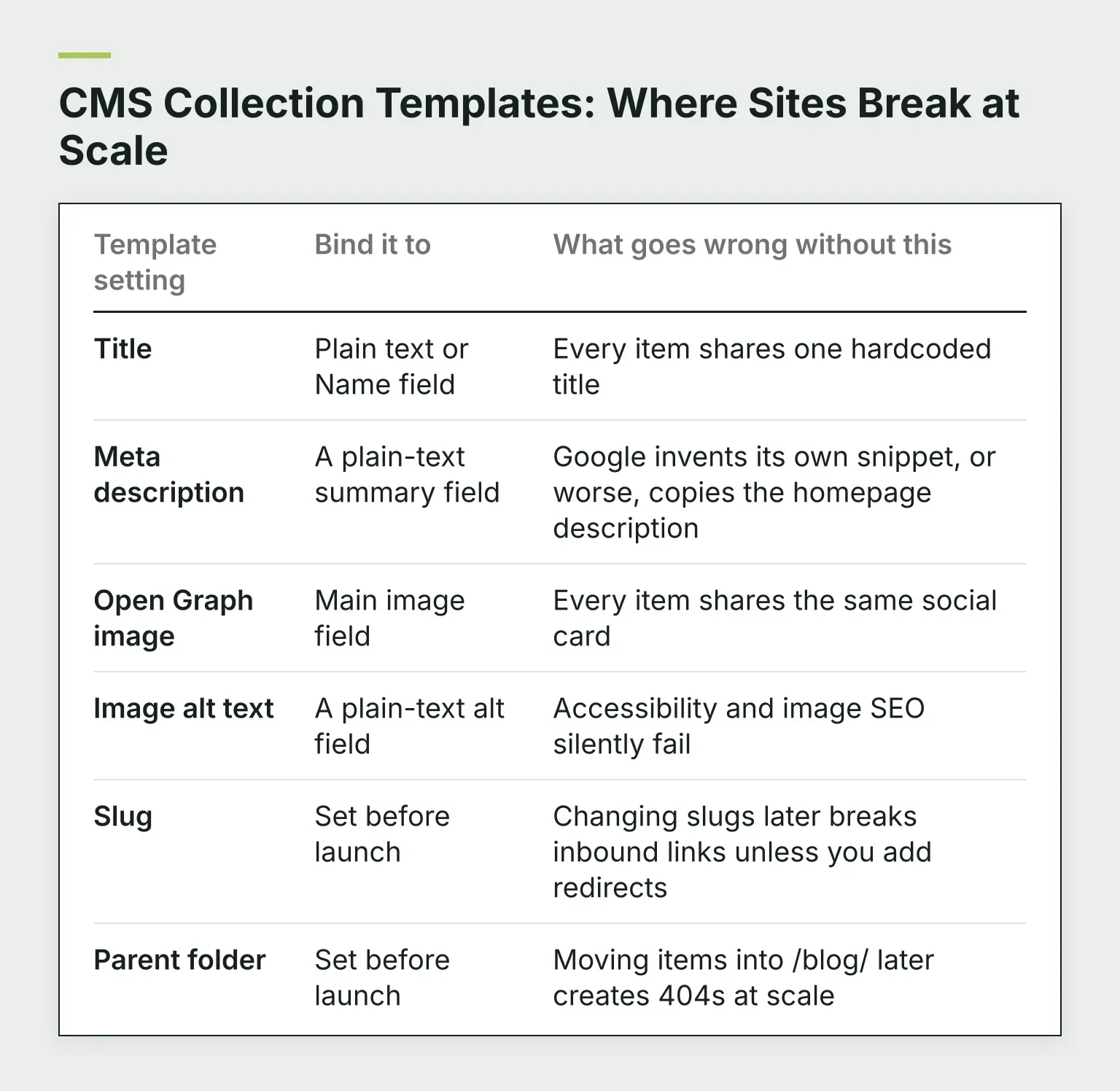
On the template's page settings, bind the SEO fields to Collection fields instead of typing literal text:
| Template setting | Bind it to | What goes wrong without this |
|---|---|---|
| Title | Plain text or Name field | Every item shares one hardcoded title |
| Meta description | A plain-text summary field | Google invents its own snippet, or worse, copies the homepage description |
| Open Graph image | Main image field | Every item shares the same social card |
| Image alt text | A plain-text alt field | Accessibility and image SEO silently fail |
| Slug | Set before launch | Changing slugs later breaks inbound links unless you add redirects |
| Parent folder | Set before launch | Moving items into /blog/ later creates 404s at scale |
Two habits prevent most of this pain. First, add a plain-text "SEO summary" field to the Collection and write a real 150-character description per item; rich text fields cannot feed the meta description, so a plain-text field is the practical home for it. Second, decide slugs and parent folders before you publish anything. Retrospective URL changes mean hundreds of redirects.
For schema, the template's schema markup field can pull values from bound fields, so one block covers every item. The list of field types that can bind into markup is specific (Polydraft's Webflow SEO guide summarizes it): plain text, image, video link, link, email, phone, number, date/time, switch, color, option, and file. Reference, multi-reference, and multi-image fields cannot be used, which is why a plain-text "author name" helper field beats a Reference field when you want author structured data.
Indexing Controls: The robots.txt Mistake
Webflow gives you two ways to keep a page out of search results, and using the wrong combination is the most common indexing error on the platform.
- robots.txt (Site settings > SEO > Indexing) tells crawlers which paths not to crawl.
- Noindex (the sitemap indexing toggle plus a noindex directive) tells crawlers a page exists but should not be indexed.
Never use both on the same page: if you disallow a URL in robots.txt, the crawler never fetches the page (Google's robots.txt documentation explains why), so it never sees your noindex tag. The page can still appear in Google with no description, based on external links alone. Webflow's own documentation calls this out explicitly: if a page was already indexed, remove it from robots.txt and let the noindex do its job, then use Google's removals tool for a faster exit.
The simple rule: robots.txt is for crawler budget and private paths you do not care about; noindex is for any page that must leave the index.
301 Redirects in Webflow
When URLs change during a migration or a slug cleanup, 301 redirects preserve rankings by passing the old URL's value to the new one. In Webflow, you manage them in Site settings > Publishing > 301 redirects.
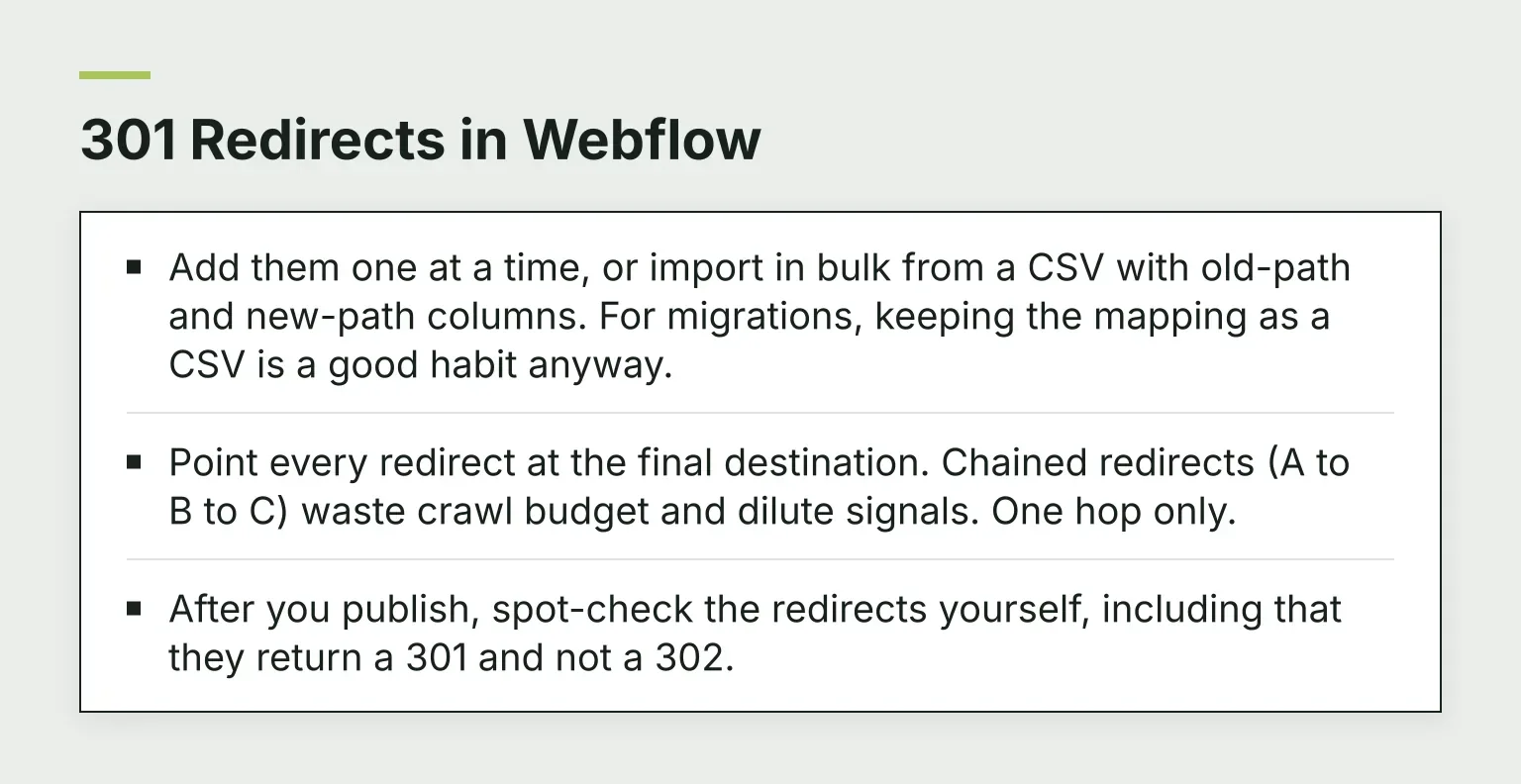
- Add them one at a time, or import in bulk from a CSV with old-path and new-path columns. For migrations, keeping the mapping as a CSV is a good habit anyway.
- Point every redirect at the final destination. Chained redirects (A to B to C) waste crawl budget and dilute signals. One hop only.
- After you publish, spot-check the redirects yourself, including that they return a 301 and not a 302.
Note that redirects are not available on the free Starter site plan, so plan this before launch, not after.
Search Console: Verify and Submit
Webflow does not connect to Google Search Console automatically, so do two things:
- Verify the site in Search Console, either with a DNS record at your domain registrar or by adding the verification meta tag in Webflow's custom code settings.
- Submit your sitemap.xml URL under Search Console's Sitemaps section after your first custom-domain publish.
Once connected, Search Console becomes your feedback loop: it shows which queries bring impressions, which pages have low click-through rates, and where indexing problems appear. Our guide to tracking keyword rankings in Search Console covers what to look at week by week.
Which Settings Need a Paid Plan
Webflow gates several SEO controls behind plan tiers, and the free Starter plan hides the ones you most likely need. Per Webflow's current plans page (which changes, so verify against it before you buy):
| Setting | Free Starter | Basic | Premium and above |
|---|---|---|---|
| Titles, meta descriptions, alt text, Open Graph, canonical tags | Yes | Yes | Yes |
| Sitemap controls, robots.txt and llms.txt, schema markup | Paid Workspace required | Yes | Yes |
| 301 redirects | No | Yes | Yes |
| CMS item indexing control | No | No | Yes |
| Custom domain publishing | No | Yes | Yes |
Two practical notes. First, if your site is still on Starter and you are about to launch to a custom domain, the Site plan you need anyway also unlocks the crawl controls. Second, per-item CMS indexing control (hiding individual Collection items, such as thin or expired entries, without unpublishing them) is a Premium-and-up feature; on Basic there is no per-item way to keep an item out of search.
A Content Workflow for the Part Webflow Leaves Out
Once the settings are right, ranking growth comes from work Webflow has no opinion about: keyword research, deciding which pages to improve, writing better titles and content, and adding internal links. Doing this by hand across a large site is slow, and generic AI tools that guess at keywords tend to produce thin pages.
A better pattern looks like this:
- Find the opportunity using your pages, rankings, and Search Console data, rather than guesswork.
- Prepare the change: a better title, a rewritten section, an internal link, an image with alt text.
- Deliver the change as a CMS draft, so it lands in the right Collection with its fields filled in.
- Publish, then measure what happened.
This is the model RomeoSEO is built around. Romeo researches each article against live Google results and the pages that already rank, checks your existing pages first so he does not repeat them, and adds images in your site's look plus internal links to your own pages. Every draft goes through an editorial review, with a rewrite when it needs one. Page improvements come from your Search Console data and a crawl of your site. On Webflow, finished articles arrive as CMS drafts, or go live in one click.
If you want to see what that finds on your own site first, the RomeoSEO audit tool checks your pages and turns the problems into fixes.
A 45-Minute Webflow SEO Audit
Work down this list in one sitting and you will catch most configuration problems:
- Search your webflow.io staging domain on Google. If it appears, find and fix the noindex on staging.
- Open your live sitemap.xml. Every URL should be one you actually want indexed.
- Spot-check your five highest-traffic pages: unique title, real meta description, working OG image.
- Open your main CMS template. Confirm title, description, and OG image are bound to fields, not hardcoded.
- Open robots.txt. No URL should be disallowed that you also want to see noindexed or in the sitemap.
- Test three old URLs from past migrations. They should resolve in one 301 hop.
- Check one page's schema in a structured data validator for errors and missing bindings.
For a deeper pass beyond settings, our practical on-page SEO guide covers the content-side checks that come next.
FAQ
Can a Webflow site rank on Google? Yes. Webflow generates clean, fast HTML and gives you full control over titles, meta descriptions, canonicals, sitemaps, redirects, and structured data. Rankings then depend on your content, links, and keyword choices, same as any platform.
Is Webflow good for SEO? For most marketing sites, yes. The main tradeoffs versus WordPress are ecosystem size: fewer off-the-shelf SEO plugins and extensions, so more depends on getting the native settings right. In return you get fewer performance and maintenance surprises.
Webflow vs WordPress for SEO: which is better? Neither wins outright. WordPress has a bigger plugin ecosystem for SEO automation; Webflow has tighter native controls and predictable hosting. Pick based on who maintains the site. If your team is small and design-driven, Webflow's built-in settings plus a steady content workflow covers most of what a WordPress stack would assemble from plugins.
Do I need a paid Webflow plan for SEO settings? Basic metadata works on every plan. Sitemap controls, robots.txt and llms.txt, schema markup, 301 redirects, and CMS item indexing require paid plans or a paid Workspace, per the plans table above.
How do I keep a page out of Google on Webflow? Use the page's sitemap indexing toggle plus a noindex, and leave robots.txt alone. Blocking with robots.txt alone can still leave the page in Google's index.
Start your free trial of RomeoSEO to see which Webflow pages are worth improving first and get the fixes written for you.